
Be Confident With Office Technology


Author: Mike Scaletti
Technology is part of nearly every modern office job, but that does not mean you need to be an expert in every program before you apply. Administrative assistants, receptionists, customer service professionals, coordinators, office managers, recruiters, sales teams, and many other professionals use digital tools throughout the workday. The exact programs vary from workplace to workplace, but the underlying skills are often surprisingly similar. You may need to write documents, organize information, send messages, schedule meetings, update records, share files, or learn a company specific system. Building confidence with these tasks can make the transition into a new office role feel much more manageable.
For job seekers, technology can sometimes become an unnecessary source of anxiety. A job posting might list Microsoft Excel, Google Workspace, Slack, Salesforce, Zoom, or another program you have only used occasionally, and it can be tempting to assume you are automatically unqualified. In reality, employers often care about more than whether you have memorized every feature of a particular application. They also want employees who can learn, troubleshoot basic problems, follow instructions, communicate clearly, and become more efficient with practice.
Digital confidence is not the same thing as knowing everything. It means understanding the tools you already know, being willing to strengthen the skills you need, and approaching unfamiliar technology without immediately assuming you cannot learn it. Like any professional skill, that confidence grows through repetition. The more often you practice basic digital tasks, the easier it becomes to recognize patterns across different programs and platforms.
Whether you are entering office work for the first time, returning after time away, transitioning from another industry, or simply trying to strengthen your professional skills, you can improve your comfort with workplace technology gradually. You do not need to master ten programs at once. You need a practical starting point, realistic practice, and the willingness to keep learning.
1. Why Digital Confidence Matters in Modern Office Work
Digital tools have become part of the basic infrastructure of professional work. Employees communicate through email and messaging platforms, collaborate through shared documents, schedule meetings through digital calendars, track information in spreadsheets, join video calls, and store files in cloud based systems. Even jobs that involve substantial face to face interaction often require employees to complete digital tasks behind the scenes. That means basic technology skills are increasingly connected to everyday productivity.
Confidence matters because hesitation can make simple tasks feel more complicated than they actually are. Someone who is worried about making a mistake might avoid experimenting with a spreadsheet, delay asking a question about a new system, or spend far longer than necessary completing a routine task. When you become more comfortable exploring menus, reading instructions, searching help resources, and correcting small mistakes, technology becomes less intimidating. You begin treating software as a tool to learn rather than a test you are expected to pass immediately.
This is especially important when starting a new job. Almost every organization has its own processes, software settings, file structures, templates, naming conventions, and internal platforms. Even experienced professionals usually need time to learn how a new employer uses technology. Someone who has used Microsoft Teams at one company may discover that another organization relies heavily on Slack. Someone who previously stored documents in Google Drive may need to adjust to SharePoint or another file management system.
Employers understand that some learning is part of onboarding. What can make a difference is your attitude toward that learning process. Employees who take notes, practice unfamiliar tasks, ask specific questions, and remember what they have learned often become independent more quickly. Those habits demonstrate adaptability, which is valuable even when the exact software changes.
Digital confidence can also affect how you present yourself during a job search. When you understand what you can actually do with common workplace tools, you can describe your skills more accurately on your resume and during interviews. Instead of vaguely saying that you are "good with computers," you can explain that you have experience managing shared calendars, creating spreadsheets, formatting documents, using video conferencing tools, or organizing cloud based files. Specific examples make your skills easier for employers to understand.
Confidence does not require pretending to know programs you have never used. In fact, exaggerated technology claims can create problems if an employer later expects you to perform tasks you cannot complete. A stronger approach is to understand your current level and show that you know how to learn. If you have used Google Sheets extensively but have limited experience with Excel, for example, you can explain that many of your spreadsheet skills transfer and that you are actively practicing Excel.
Digital skills can also improve your ability to compete for opportunities. Many candidates have similar experience, especially for entry level administrative and professional roles. Familiarity with common office technology can give employers additional reasons to consider you because it may reduce the amount of basic training needed after hire. Even relatively simple skills such as creating polished documents, organizing email, scheduling meetings, sorting spreadsheet data, and participating professionally in video calls can strengthen your overall professional profile.
Perhaps most importantly, digital confidence can make the workday less stressful. Technology becomes easier when you trust your ability to figure things out. You may not know exactly where a feature is located, but you know how to search for it. You may encounter an unfamiliar platform, but you recognize that many workplace programs use similar concepts such as folders, permissions, notifications, search functions, filters, and settings.
That mindset creates resilience. Instead of seeing an unfamiliar program and thinking, "I do not know this, so I cannot do the job," you can think, "I have learned similar tools before, and I can learn this one too." That shift can make a meaningful difference during both your job search and your first weeks in a new position.
2. Common Tools Used in Administrative and Professional Roles
You do not need experience with every workplace application to develop useful digital skills. It is often more helpful to understand the major categories of tools used in office environments. Once you understand the purpose of each category, learning a specific platform becomes easier because you already understand what the software is designed to accomplish.
Word Processing and Document Creation
Microsoft Word and Google Docs are two of the most common document creation tools. Professionals use them for letters, reports, meeting notes, internal instructions, resumes, proposals, agendas, forms, and many other workplace documents. Useful skills include typing and editing text, adjusting fonts and spacing, creating headings, working with tables, inserting links, checking spelling, adding comments, and saving or exporting documents in the correct format.
You do not need advanced publishing skills to be productive. In many administrative roles, consistency and readability matter more than complicated design. Being able to create a clean document, follow an existing template, make requested edits, and save the correct version can already be valuable. As you gain experience, you can explore more advanced features such as styles, mail merge, tracked changes, automatic tables of contents, and document collaboration.
If you are practicing independently, try creating realistic office documents rather than simply clicking through menus. Draft a sample meeting agenda, create a one page procedure guide, or format a professional letter. Practical exercises help you remember what features actually do and make it easier to explain your experience later.
Spreadsheets
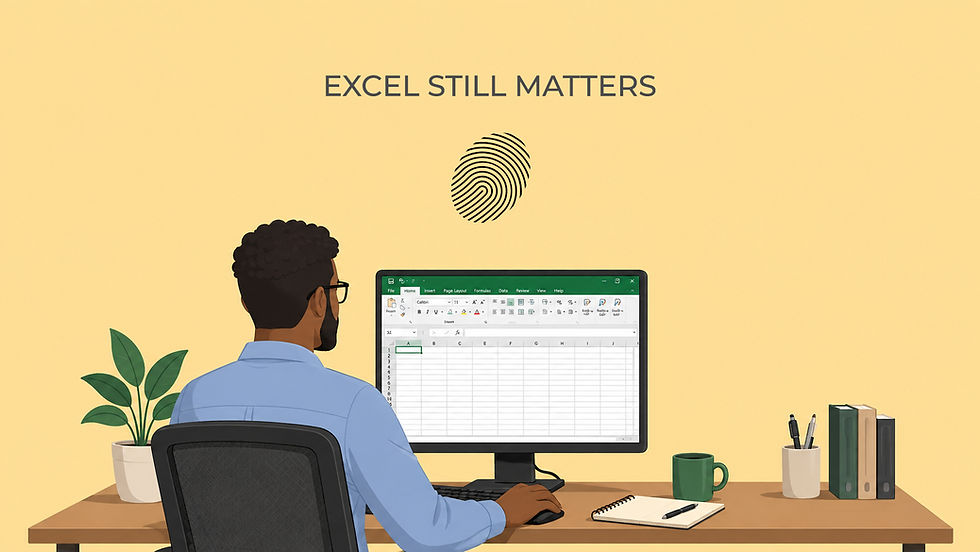
Microsoft Excel and Google Sheets are widely used to organize, calculate, track, and analyze information. Administrative professionals might use spreadsheets for schedules, contact lists, invoices, budgets, inventory, event planning, applicant tracking, expenses, or project updates. Basic spreadsheet confidence can therefore be useful even in roles that do not involve advanced financial analysis.
Start with the fundamentals. Learn how rows, columns, cells, worksheets, and workbooks function. Practice entering information, adjusting column widths, formatting dates and currency, sorting data, filtering records, freezing headers, and using simple formulas. Functions such as SUM, AVERAGE, COUNT, MIN, and MAX can provide a practical introduction to how spreadsheet formulas work.
Once those tasks feel comfortable, you can gradually explore additional features. Conditional formatting, basic charts, lookup functions, pivot tables, and data validation can all be valuable depending on your role. You do not need to learn them all at once. Strong spreadsheet skills are usually built through repeated use rather than a single intensive practice session.
Email may seem familiar because most people have used it personally, but professional email involves additional habits. Office employees need to manage messages efficiently, communicate clearly, use appropriate subject lines, understand when to reply to everyone, attach the correct documents, and recognize how tone can be interpreted without face to face context. Gmail and Microsoft Outlook are common platforms, although companies may use different systems.
Organizational features are worth learning as well. Folders, labels, search operators, flags, filters, rules, categories, and archive functions can help manage busy inboxes. Calendar invitations are also frequently connected to email platforms, making Outlook and Google Workspace especially important for office coordination.
Practice can be simple. Organize your personal inbox, create folders for different topics, practice searching for older messages, and experiment with scheduling or flagging messages. These everyday actions can help you understand features you may later use professionally.
Calendars and Scheduling
Professional scheduling involves more than knowing what day a meeting occurs. Administrative employees may need to coordinate several participants, consider time zones, reserve conference rooms, add video links, handle recurring meetings, reschedule appointments, or manage someone else's calendar. Google Calendar and Microsoft Outlook Calendar are among the most common tools used for these tasks.
If you want to strengthen this skill, practice creating calendar events with clear titles, descriptions, locations, reminders, and guest lists. Learn the difference between changing one occurrence of a recurring meeting and changing the entire series. Explore availability views and understand how shared calendars can be used to coordinate schedules.
Calendar management is a good example of a digital skill where attention to detail matters just as much as technical ability. Choosing the wrong date, forgetting a time zone, or inviting the wrong participant can create more problems than not knowing an advanced calendar feature. Careful review is therefore an important part of digital confidence.
Workplace Messaging and Collaboration
Platforms such as Microsoft Teams and Slack allow employees to communicate quickly throughout the day. Companies may use them for direct messages, group discussions, project channels, announcements, file sharing, meetings, and quick questions that do not require a full email. These tools can initially feel busy because conversations happen across multiple channels and notifications.
Learning basic navigation can make them much easier to manage. Understand the difference between public channels, private conversations, threads, mentions, reactions, and notifications. Practice being concise when sending workplace messages and pay attention to where information belongs. A quick question may be appropriate in a message, while a longer discussion or formal record may belong in email or a project management system.
Digital communication also requires judgment. Sending five separate messages when one clear message would work can disrupt colleagues. At the same time, waiting hours to respond to a simple question because you are trying to write the perfect message can slow down work. Technology skills and communication skills often overlap.
Video Conferencing
Zoom, Microsoft Teams, Google Meet, and similar platforms have become common for interviews, meetings, training sessions, and remote collaboration. Most people do not need advanced video production skills, but they should understand how to join meetings, control their microphone and camera, use chat, share a screen, select audio devices, and troubleshoot basic connection problems.
For job seekers, these skills are particularly useful because video interviews remain common. Testing your microphone, camera angle, internet connection, and background before an interview can prevent unnecessary stress. Knowing how to share your screen can also be helpful if an interviewer asks you to walk through a portfolio, project, or work sample.
You can practice many of these skills alone. Start a test meeting, experiment with microphone settings, practice screen sharing, and learn how to switch between windows without displaying unrelated information. Familiarity reduces the number of things you need to think about when the actual meeting begins.
Cloud Storage and File Organization
Modern workplaces increasingly store documents in systems such as Google Drive, Microsoft OneDrive, SharePoint, Dropbox, or company specific platforms. Cloud storage allows multiple employees to access files from different locations, but it also creates responsibilities around organization, naming, permissions, and version control.
Employees need to understand where files should be stored, who should have access, and which version is current. Saving a document to the wrong folder or creating multiple conflicting versions can cause confusion for an entire team. Learning how shared folders, links, permissions, and version histories work can therefore make you much more effective.
You can practice by organizing your own files into a logical folder structure. Rename documents clearly, remove unnecessary duplicates, and experiment with sharing a file through a cloud service if you use one personally. These habits transfer well to professional environments.
Customer Relationship Management and Company Specific Systems
Some office roles use customer relationship management platforms such as Salesforce or HubSpot. Others use applicant tracking systems, accounting platforms, scheduling tools, ticketing systems, inventory databases, or industry specific software. These programs often appear intimidating because they are less familiar outside the workplace.
The important thing to remember is that most organizations provide some training on systems that are specific to their operations. Your goal is not necessarily to arrive knowing every platform. Instead, demonstrate that you can learn structured systems, follow processes, enter information carefully, and understand why accurate records matter.
Experience with one database or business platform can often help you adapt to another. Concepts such as records, fields, statuses, filters, notes, search, permissions, and workflows appear across many systems. Once you recognize those patterns, unfamiliar software begins to feel less unfamiliar.
Project and Task Management Tools
Programs such as Asana, Trello, Monday.com, ClickUp, and other task management platforms help teams assign work, track deadlines, communicate progress, and organize projects. You may encounter these tools even if project management is not part of your job title. Administrative professionals often help update tasks, coordinate deadlines, or maintain shared project information.
When learning one of these systems, focus first on the basic workflow. Understand how tasks are created, assigned, updated, completed, and organized. Learn where deadlines, comments, attachments, and status information are stored. The exact interface will vary, but the underlying purpose is usually similar.
The common theme across all of these technologies is that you do not need complete mastery before you can be useful. Office technology is designed to help people complete work. If you understand the purpose of the tool, know the basics, and are willing to learn additional functions as needed, you already have a foundation you can continue building.
3. How to Practice Without Feeling Overwhelmed
One of the biggest mistakes job seekers make when trying to improve their digital skills is attempting to learn too much at once. They open a long list of software programs from several job postings and decide they need to become proficient in all of them immediately. That approach can quickly turn skill building into a stressful project instead of a manageable habit. A more effective strategy is to focus on one useful skill at a time.
Start by reviewing the types of jobs you are targeting. Look at several postings and notice which tools appear repeatedly. If eight administrative assistant positions mention Microsoft Office and six specifically mention Excel, Excel may deserve more attention than a specialized platform that appears only once. Your practice should reflect the skills that are most relevant to the work you actually want.
Once you have chosen a tool, select a small task instead of an entire program. "Learn Excel" is too broad to be useful as a practice goal. "Learn how to sort and filter a spreadsheet" is specific enough to complete. After you feel comfortable with that skill, you can choose the next one.
Short practice sessions can be highly effective. Thirty focused minutes spent building a spreadsheet may teach you more than several hours of passively watching tutorials. Tutorials are useful, but try to follow along rather than simply observing. Pause the video, repeat the steps, change the example, and see whether you can recreate the task without instructions.
Create practice projects that resemble actual office work whenever possible. You could build a fictional monthly expense tracker in Excel, create a meeting agenda in Word, organize a mock project in Trello, or schedule a week of imaginary appointments in Google Calendar. Realistic exercises force you to make decisions instead of simply copying instructions. They also give you concrete examples to discuss when describing your skill development.
It can also help to practice the same task more than once. Repetition is what turns a new process into a familiar one. The first time you create a formula, you may need to follow instructions carefully. The fifth time, you may remember the structure automatically. That progression is exactly how confidence develops.
Do not interpret mistakes as evidence that you are bad with technology. Mistakes are part of learning software. You may accidentally change formatting, delete something, choose the wrong menu, or create a formula that returns an error. Instead of immediately starting over, investigate what happened and see whether you can correct it.
Undo functions, version histories, help menus, search engines, tutorials, and software support pages exist because even experienced users need help. Knowing how to recover from a mistake can be more valuable than never making one. Professional technology use often involves troubleshooting small problems independently before deciding whether you need assistance.
Another helpful habit is keeping brief notes while you learn. You do not need to create an elaborate technology manual. Write down shortcuts you want to remember, steps for tasks you find confusing, and explanations of functions you are practicing. These notes can become your personal reference and reduce the frustration of repeatedly looking up the same information.
Formal classes and workshops can also help if you prefer structured instruction. Community organizations, libraries, adult education programs, online learning platforms, staffing agencies, and professional development organizations may offer training in common office software. A workshop can provide direction and accountability, especially if you are unsure what to practice independently.
If you choose a class or certificate program, focus on whether it gives you useful skills rather than simply collecting credentials. Employers are generally more interested in what you can actually do than how many training certificates you can list. A short workshop followed by consistent practice may provide more value than an expensive course you complete without applying what you learned.
Your practice does not need to become a second full time job. Consistency is more important than intensity. Practicing one digital skill for twenty or thirty minutes several times a week can produce substantial improvement over a few months. The goal is to make technology increasingly familiar, not to overwhelm yourself with an unrealistic learning schedule.
4. How to Communicate Your Comfort Level Honestly
Technology skills often appear on resumes and during interviews, which can create pressure to sound more experienced than you really are. Job seekers may worry that admitting they are still learning something will immediately remove them from consideration. That fear can lead candidates to claim "advanced" knowledge of a program when they have only used basic features. While that might seem helpful during the application process, it can create difficult situations later.
A better approach is to describe your skills specifically. Instead of labeling yourself as a beginner, intermediate user, or expert without explanation, identify the tasks you can perform. For example, you might say that you are comfortable creating and formatting spreadsheets, using basic formulas, and sorting and filtering information. That gives an employer a clearer picture of your ability than simply writing "Excel: intermediate."
Specific language can also help you recognize that you know more than you think. Someone may say, "I barely know Google Drive," but then explain that they regularly create folders, share documents, adjust permissions, and collaborate on Google Docs. Those are useful workplace skills. The problem may be confidence rather than capability.
When you have limited experience with a tool, connect it to something similar that you already know. If a position uses Microsoft Teams but you have used Slack extensively, explain that you are familiar with professional messaging platforms and comfortable learning Teams. If you have used Google Sheets but not Excel recently, mention your spreadsheet experience and your current effort to strengthen Excel specifically.
This approach shows both honesty and adaptability. You are not claiming experience you do not have, but you are also not treating every unfamiliar program as an entirely new skill. Employers often understand that digital knowledge transfers between platforms, particularly when the underlying tasks are similar.
You can also discuss active learning. Saying that you have limited experience with a program is very different from saying that you have limited experience and are currently practicing it. For example, you might explain that you have used Excel for basic data entry and are now practicing formulas, sorting, filtering, and charts. That demonstrates initiative and gives the employer a more complete picture.
Your resume should also reflect the skills most relevant to the position. A general technology section containing twenty programs can become difficult to interpret, especially if your actual experience varies widely. Instead, prioritize the tools you know well and those that appear frequently in your target roles. Where appropriate, incorporate technology into your accomplishment statements so employers can see how you used it.
For example, instead of simply listing "Microsoft Outlook," you might describe coordinating meetings and maintaining shared calendars using Outlook. Instead of only listing "Google Sheets," you could mention maintaining tracking spreadsheets or organizing reporting information. Context demonstrates that you have used the software as part of actual work rather than simply opening the program before.
During interviews, be prepared for follow up questions. If you say you are comfortable with Excel, an interviewer may ask what you have used it for. If you mention Salesforce, they may ask how frequently you worked in it. Think through your experience before the interview so you can answer clearly without overstating or underselling yourself.
If an employer asks about a program you have never used, honesty is usually the safest choice. You can say that you have not worked directly with that particular platform yet and then explain any related experience. You can also describe how you have learned new systems in previous jobs. That answer demonstrates self awareness and adaptability without creating expectations you may not be able to meet.
Try to avoid language that undermines your ability unnecessarily. Saying, "I am terrible with technology," communicates much more than a lack of experience with one tool. It suggests that you expect difficulty with digital work in general. A more accurate statement might be, "I have not used that system yet, but I have learned several similar platforms and am comfortable picking up new software."
There is also nothing wrong with identifying a genuine development area. Every professional has skills they are still improving. The key is showing that you understand the gap and have a reasonable plan for addressing it. Employers often value candidates who can accurately assess their abilities because that self awareness helps with training, communication, and teamwork.
Confidence and honesty should support each other. Confidence does not mean pretending every program is easy. It means trusting your ability to learn while being realistic about what you already know.
5. Building Digital Confidence Into Your Job Search
Once you begin strengthening your technology skills, make sure that effort becomes part of your broader job search strategy. Digital practice can improve your resume, interview preparation, productivity, and ability to evaluate job postings. The goal is not simply to accumulate software knowledge. It is to become more prepared for the everyday tasks you are likely to encounter at work.
Start by looking for patterns across your target positions. If Microsoft Office, Google Workspace, scheduling tools, or CRM systems appear repeatedly, make those categories priorities. You may discover that you already meet most of the technology requirements and only need to strengthen one or two areas. Job descriptions often look more intimidating when every tool is viewed as a completely separate requirement.
You can also update your resume as your skills improve. Do not wait until you feel like an expert. If you have gained practical ability with a relevant program, consider whether it belongs in your skills section or experience descriptions. Just make sure the wording accurately reflects what you can do.
Digital skills can also help with the job search itself. Spreadsheets can be used to track applications, interview dates, follow ups, contacts, and job posting links. Calendar tools can help organize interviews and networking conversations. Cloud storage can keep different versions of your resume, cover letters, work samples, and application materials organized.
Using technology to manage your search gives you additional opportunities to practice. A job application tracker is not merely an organizational tool. It can also become spreadsheet practice. Creating folders for different applications can strengthen your file organization habits, while scheduling reminders for follow ups can improve your calendar skills.
This kind of practice is particularly useful because it connects learning to something you already need to accomplish. You are not creating random exercises solely for the sake of technology training. You are improving your digital skills while making your job search more organized.
Pay attention to the confidence that comes from small improvements. The first time you use a spreadsheet filter without looking up the instructions, notice that progress. The first time you troubleshoot your video settings before a meeting, recognize that as a skill. The first time you confidently explain your experience with shared calendars during an interview, you are seeing the practical result of your practice.
Employers rarely expect every candidate to know every system exactly as their organization uses it. Businesses change software, update processes, introduce new platforms, and customize existing tools. Even long term employees have to keep learning. The ability to adapt is therefore one of the most durable technology skills you can develop.
Digital confidence also grows faster when you stop comparing yourself to people with completely different experience. Someone who has used Excel every day for ten years will naturally know features that a new user does not. That does not mean you cannot become capable enough for the role you want. Your goal is progress that matches your professional needs, not instant expertise.
If technology has been a source of anxiety in your job search, choose a smaller definition of success. You do not need to become "a technology person." You need to become comfortable completing the digital tasks that support your work. That might mean knowing how to create a professional document, maintain a spreadsheet, schedule meetings, participate in video calls, organize files, and learn a new company system when necessary.
Those skills are achievable. More importantly, they are learnable.
Start With One Digital Tool This Week
The number of programs used in modern workplaces can make digital skill building seem endless. New applications appear, companies use different systems, and even familiar platforms regularly introduce new features. Trying to prepare for every possibility is not realistic, and it is not necessary.
Instead, choose one digital tool that appears frequently in the jobs you want. Spend some time this week practicing a specific task with that tool. If Excel is important, create a small spreadsheet and practice sorting, filtering, or formulas. If Outlook is common in your field, explore calendar invitations, folders, or search features. If video interviews make you nervous, start a test meeting and practice adjusting your microphone, camera, and screen sharing settings.
Keep the goal small enough that you can actually complete it. After you become comfortable with one task, add another. Over time, those individual skills begin to connect, and programs that once seemed intimidating become ordinary parts of your professional toolkit.
Digital confidence is built through experience, not perfection. Every time you practice a new feature, solve a small problem, or learn a new system, you strengthen your ability to adapt in the workplace. That confidence can help you apply for opportunities more comfortably, speak about your abilities more clearly, and enter a new job feeling better prepared for the technology you will encounter.
If you are looking for your next opportunity, The Job Shop can help connect you with positions where your experience, strengths, and developing skills can contribute. Continue building your abilities one step at a time, stay open to learning, and remember that nearly every confident technology user once had to figure out where to click first.


Comments